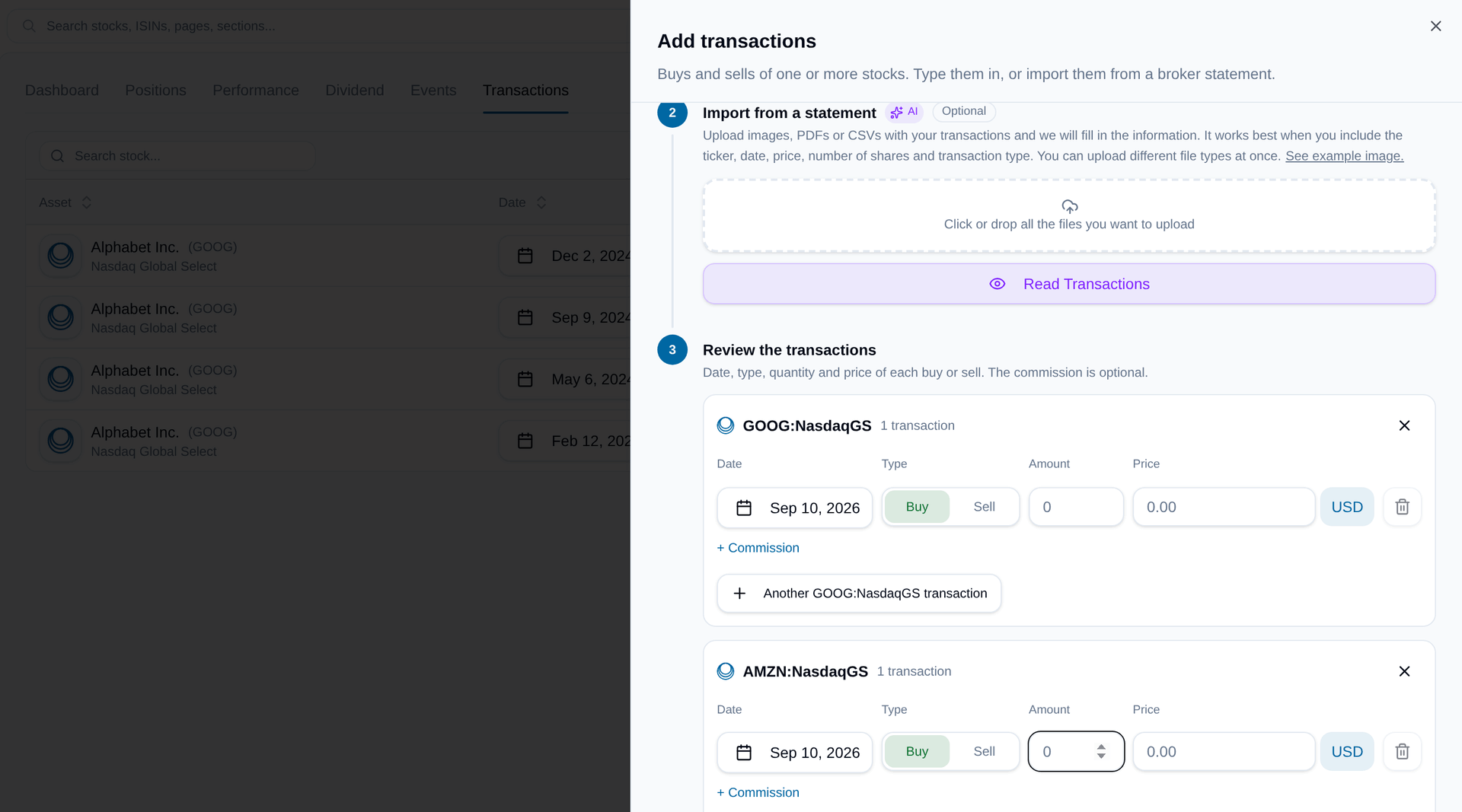
The form for adding transactions used to open as a single search box. You couldn't see what it was going to ask for, or that it could read a broker statement, until you had picked a stock.
Now it opens with its three steps laid out:
- Pick the stocks. Search by ticker or name, or press one of the stocks already in your portfolio, listed right under the search box. Up to ten at a time.
- Import from a statement. Optional. Upload images, PDFs or CSVs from your broker and press Read Transactions: the trades it finds are added to the ones below, never in place of the ones you typed. Read the same statement twice and nothing is added twice. If a statement adds nothing, the step says why.
- Review the transactions. One card per stock, one row per trade: date, buy or sell, amount and price. The commission is behind + Commission, for the trades that had one.
Steps 2 and 3 are visible from the start and unlock as soon as you pick a stock. The button at the bottom counts what you're about to save, as in Add 3 transactions.
You'll find it where it always was, under Add Transaction › Stock transactions in any portfolio you own. The Transactions tab has its own button for it too: Add stock transaction, next to the filters.